
Serial No. 300
How to change background color in Autodesk Inventor (with caption and audio narration)
Transcription of the Video
- Open a file named as ‘Part2’ and go to the Tools tab.
- Activate the ‘Application Options’ command.
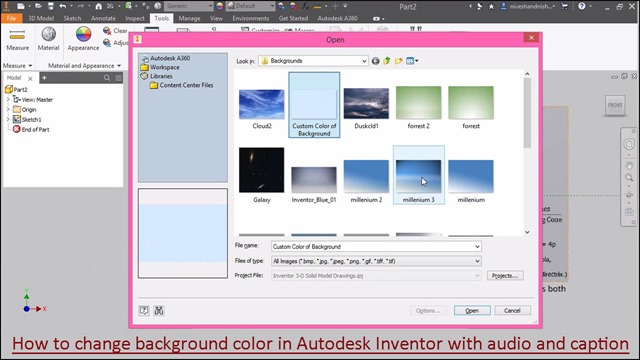
- Click ‘Colors’ tab and choose ‘Background Image’ option under the Background area.
- Go in the File name field, choose the image file named as ‘Custom Color of Background’.
- Click open and click Apply button.
- Close the dialogue box to execute the command.
- Close the ‘Part2’ file and reopen it.
- Now the new background image become active in the design area.
- In the same way, you can select other background images in the design area.